Configure metadata fields for AI-generated items
Before adding metadata to Item Assist, you must configure the metadata fields in your ExamDeveloper project.
|
A warning shows at top of the page if no single-line or dropdown metadata is configured for the project. |
 Only
Add a metadata field to your project
- Upon logging into ExamDeveloper, go to Manage > Settings.
- Click the Metadata tab.
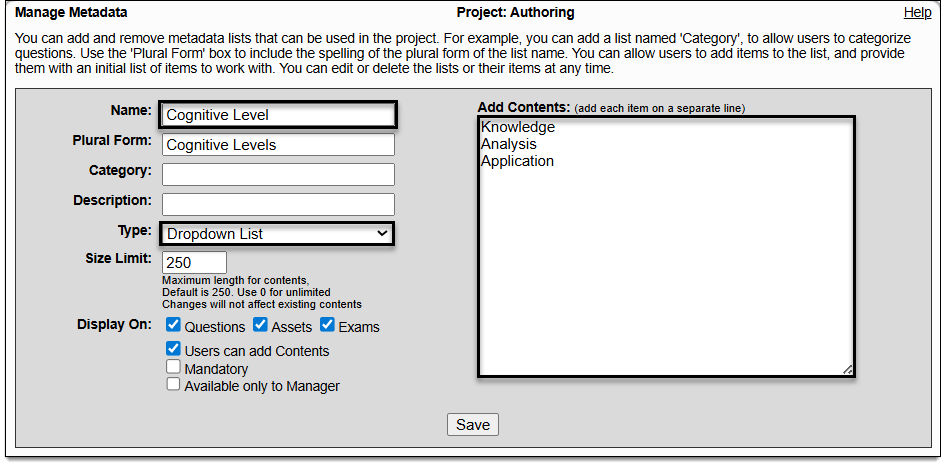
- In the Name field, enter the desired name such as "Cognitive Level" or "Question Style".
- From the Type menu, select Single-line Text or Dropdown List.
- If the metadata type is Dropdown List, add the dropdown options in the Add Contents panel on the right side of the page. Each dropdown option should be input on a separate line.
- Leave all other fields as is.
- Click Save.